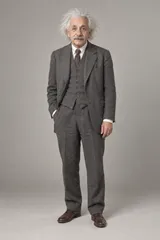
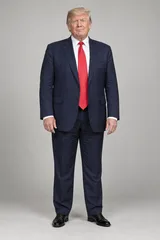
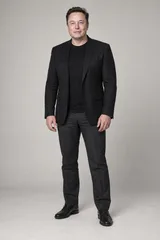
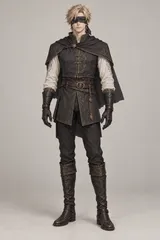
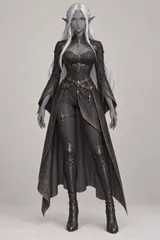
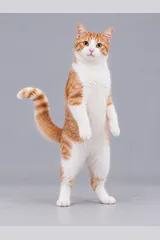
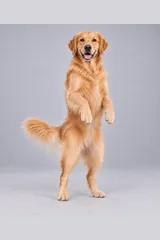
Hotel Lobby AI Video Generator

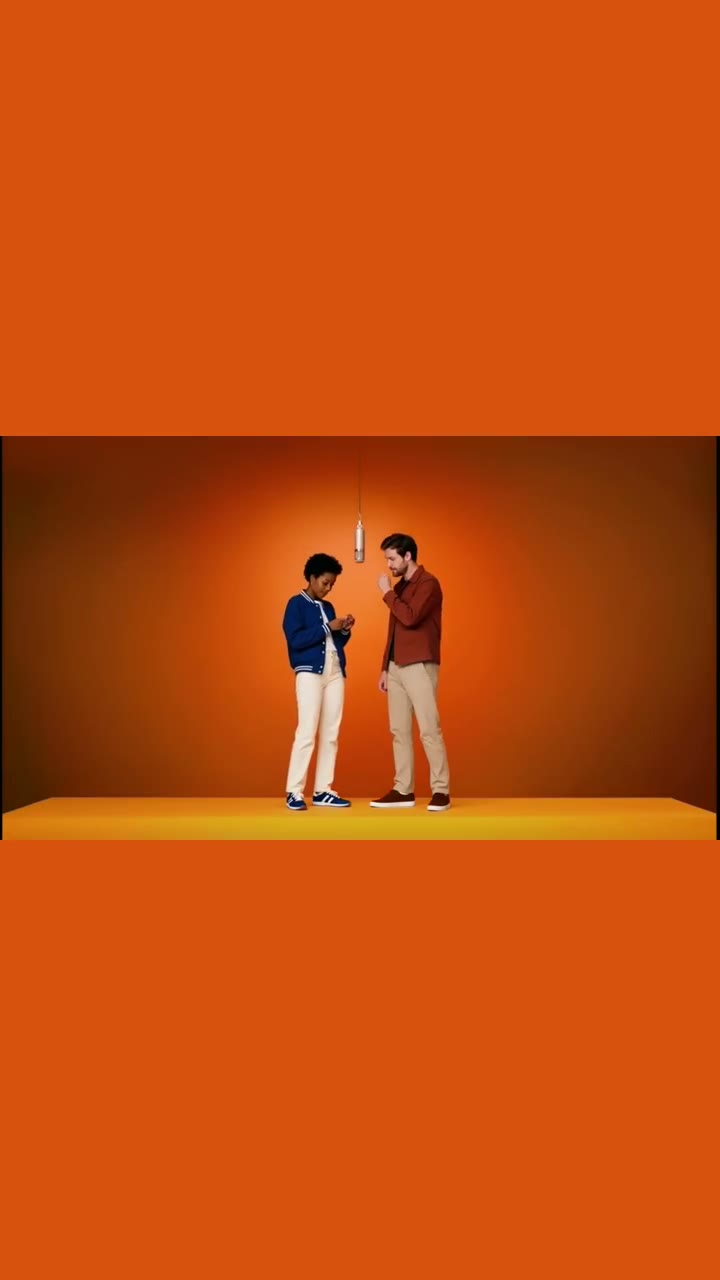
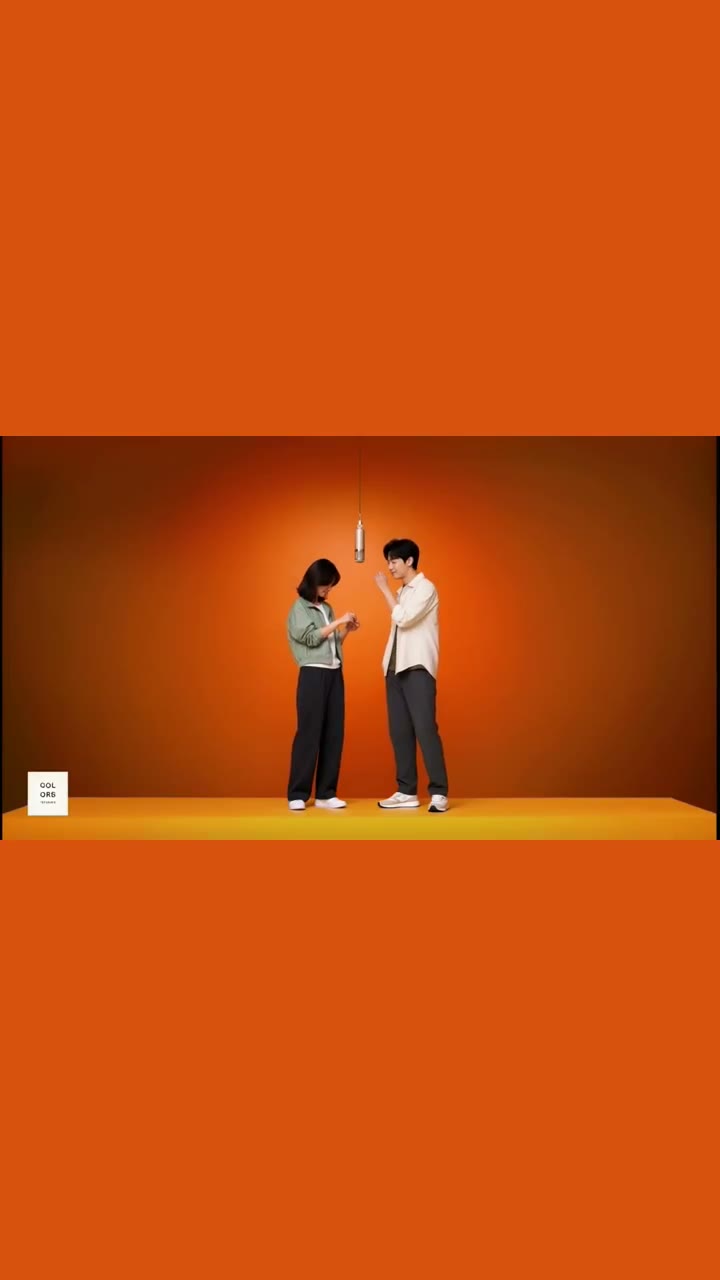
Two photos are all it takes: upload two characters, choose 5, 10 or 15 seconds, and this hotel lobby AI generator puts them behind the mic in the orange booth — one on stage left, one on stage right — moving in step with the track. New accounts get 150 credits, enough for one 5-second preview, and there is no subscription.

  • Two-person swap
  • Audio synced to the timeline
  • 5–15 second videos

Create your video

1 · Upload characters

Left character
JPG / PNG / WebP
Right character
JPG / PNG / WebP

Prepare one full-body character for each slot. Clear outlines and simple backgrounds help keep the two references distinct.

Model: Kling V3 Omni · Replaces both characters in the reference clip.

2 · Length

Output quality: 720p, matching the reference clip.

3 · Aspect ratio

Portrait keeps both performers inside a 9:16 canvas, with space above and below the wide performance.

150 credits720p

Free to explore. Your uploads stay here while you sign in.

Output

Example preview · 5s
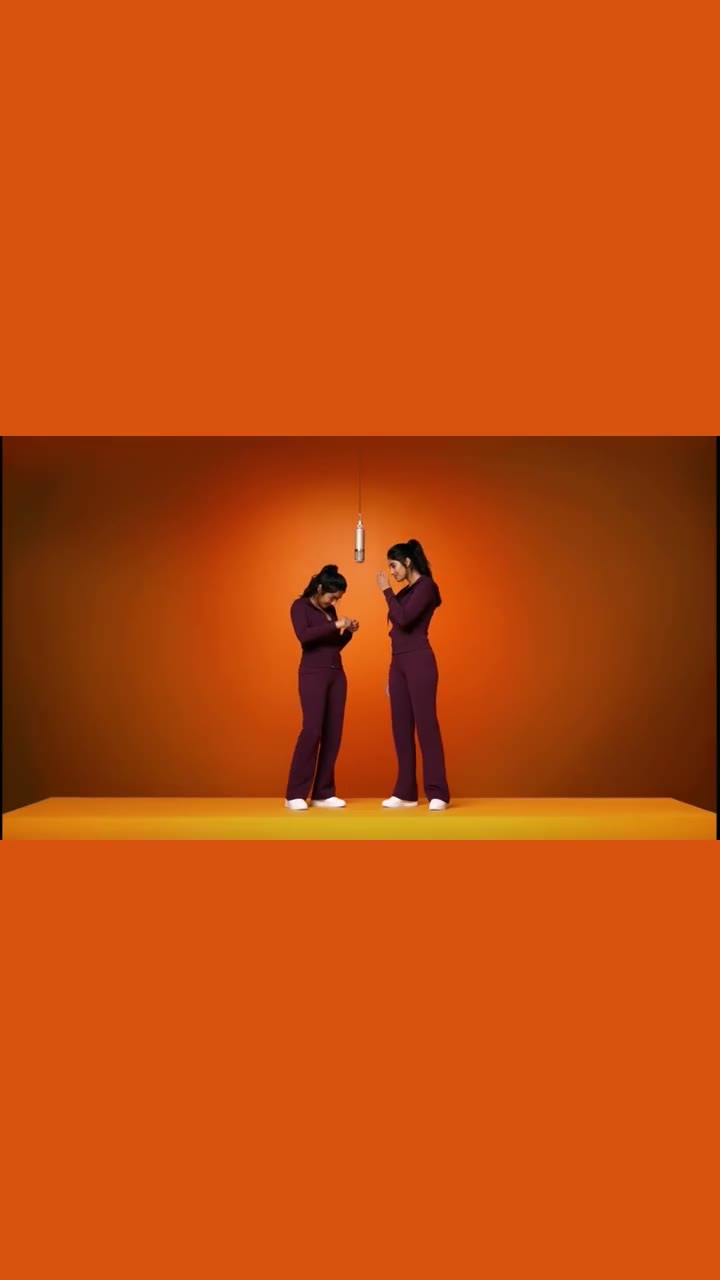
Couples duet · Generated from two fictional adult referencesYour finished video will appear here.
Estimated generation time3–8 min

5s · 720p · Estimated total time, including processing and export.

Approximate range. Busy queues can take longer.

Before you upload

Three checks for a stronger first take

A hotel lobby AI generator needs enough information to distinguish both performers. Before spending credits, inspect each photo on its own. These diagrams illustrate input selection; they are not generated-output comparisons.

Use: face visible
Avoid: turned away

1. Face the camera

Choose a clear view of the face instead of sunglasses, a turned head or a heavy shadow. Expression is less useful than visibility. For illustrated characters, keep the facial features large enough to read when the image is reduced.

Use: head to feet
Avoid: close crop

2. Keep the whole body

Leave a little room around the head, hands and feet. Clothing and body proportions come from your reference; a face-only photo gives the model less to work with. For a pet, include the paws and outline of the body.

Use: one character
Avoid: group photo

3. Separate the performers

Upload one subject in the left slot and another in the right. A plain background makes the outline easier to read. If you start with a group photo, prepare two separate images and confirm that each contains only the intended character.

Accepted inputs: JPG, PNG or WebP, at least 128 × 128 pixels, up to 20 MB each and no more than 20 megapixels. Better references reduce ambiguity, but they do not guarantee exact faces, hands or clothing. Read the input checklist.

Choose your cast

Four ways to share the mic

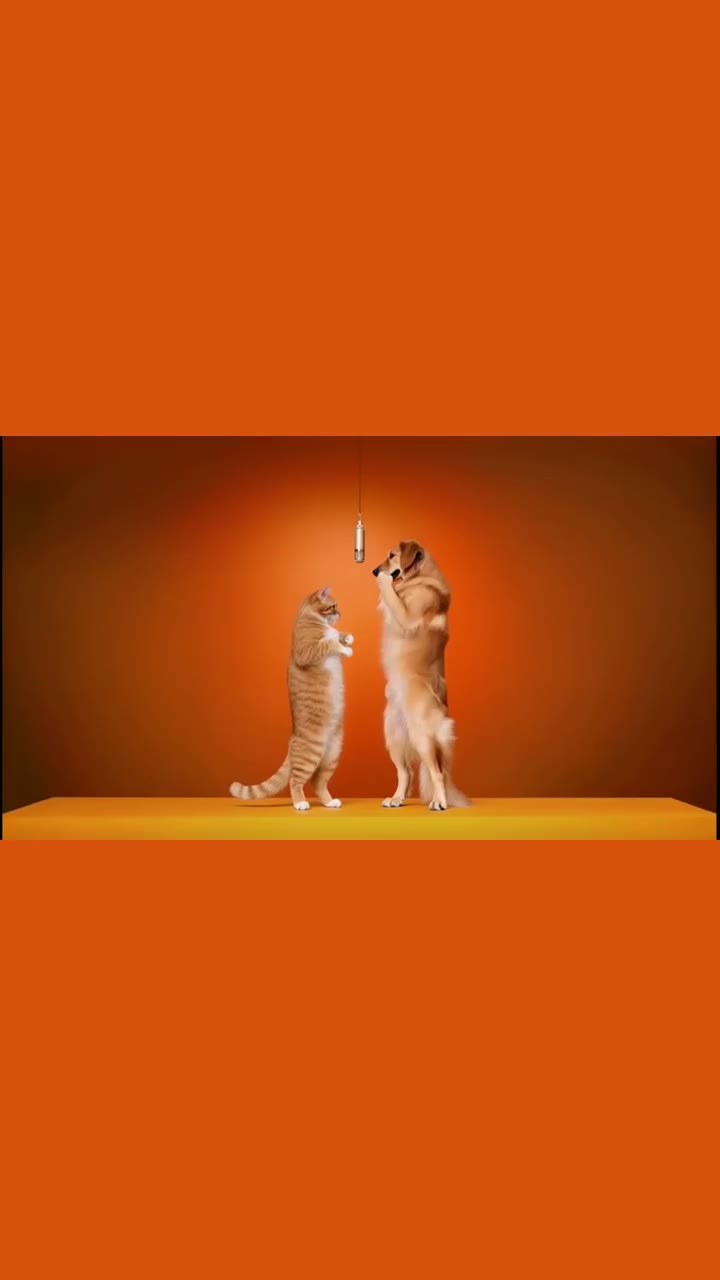
Start with a scenario that fits your photos. Each guide includes its own generated demonstration and a pair you can load into the studio.

How it works

From two photos to a finished duet

Your images set the look. The reference clip sets the performance. Prepare the cast, choose your format, let the server render and check the export before sharing.

Read the two-photo video guide

  1. 01

    Choose two clear characters

    Give each side its own image. Use a front view with the whole body visible, then compare the left and right previews. Separate files make it clear which subject belongs in each position.

  2. 02

    Set the length and frame

    Start with 5 seconds for a 150-credit preview. A 10-second clip uses 300 credits and 15 seconds uses 450. Choose portrait for a vertical post or landscape for a wide player.

  3. 03

    Render in the background

    Sign in with Google and confirm the total. The 5-second estimate is 3–8 minutes, not a deadline; queues can add time. You may close the tab because the job continues on the server. Failed jobs automatically return reserved credits.

  4. 04

    Stitch and export

    Longer results render in parts and are stitched together, with the track aligned across the joins. Play the completed MP4, check both faces and the sound, then download it from your account.

Credit packs

Credits for the clips you want to make

Try the 150-credit welcome allocation first. If you want another cast or a longer cut, choose a one-time pack. All lengths export at 720p; buying credits does not start a subscription. Purchased credits last 12 months, and the studio shows the total before each job.

FAQ

Hotel Lobby video questions

Still unsure? Email support@hotellobbyaigenerator.online.

What is the Hotel Lobby AI video trend?

It recreates a two-person rap performance staged around a single hanging microphone in an orange studio. You pick two characters, put one on each side of the mic, and the generator has them trade verses in a short clip. The format comes from a live-session music video that went viral — people are copying the setup, not any one performer.

Which images work best?

One clearly visible character per image, head and feet in frame, facing the camera, against a simple background. The image supplies the face, outfit and body proportions; a cropped or busy photo leaves the model guessing. JPG, PNG or WebP, at least 128 × 128 px and up to 20 MB each. The first image maps to stage left, the second to stage right.

Can I use photos of real people?

Only with their permission, and never photos of anyone under 18. Don't present a generated video of a real person as genuine footage or as their endorsement. Full rules are in our Terms of Service.

How much does a video cost?

Cost is by length at 720p: 30 credits per second, so a 5-second video is 150 credits. The studio shows the total before you submit. Credits are one-time packs with no subscription; purchased credits last 12 months and sign-up credits last 30 days.

How long does it take?

Most videos finish in a few minutes. Longer clips and busy queues add time, and the estimated range is shown in the studio before you generate.

Can I close the tab while it renders?

Yes. Rendering continues on our servers and the result is saved to your account. Sign in with the same Google account on any device to see the latest status or download the finished MP4.

What happens if a generation fails?

Credits are only reserved while your video renders, and a failed job returns them to your balance automatically. A credit refund does not reverse a credit-pack payment.

What about the audio?

Your video is cut to the beat of the reference clip so the movement and the track stay in sync. We do not claim any rights to the underlying music or performance, and commercial use may need separate clearance.

Do I need an account?

You can browse the studio and the example gallery without one. Generating or buying credits needs a Google sign-in — it is the only sign-in option, and it keeps your videos and credits in one account.

Is this affiliated with COLORS or the original performers?

No. Hotel Lobby AI Generator is an independent tool. It is not affiliated with, sponsored by or endorsed by COLORS, the original performers or their rights holders.

Can I export a vertical video?

Yes. Select 9:16 for a 720 × 1280 MP4, or choose 16:9 for a 1280 × 720 file. Portrait output fits the wide performance inside a vertical canvas with space above and below; it does not crop away either character or create a new camera angle.

Can I make a duet with pets?

Use a separate image for each pet, with a visible face, body and paws. The two performance positions stay the same, so the result is a stylized animal duet rather than natural animal movement. Compare the pet example before preparing your own images.

How do I use the free credits?

New accounts get 150 free credits — enough for one 5-second preview at 720p. Pick 5 seconds in the studio and check that the total is 150 before submitting. No credit-pack purchase is needed for that first preview. The free balance expires after 30 days; it is not renewed each day.

Your turn on stage

Bring your two characters to the booth

Build a short duet cut to the beat of the trend track. Choose your cast, check the 150-credit total for a 5-second preview, and start when you are ready.